
01What it does
When your bot asks for a date, people usually type it. One writes "next Friday", another writes "30/09", a third makes a typo.
With the calendar on, the bot shows a small month calendar under the question. People tap a day. If you also need a time, they then tap a time button. That is the whole answer.
Typing still works. If someone prefers to write "tomorrow 3pm", the bot reads it exactly as before.
Good uses:
- an appointment or a visit
- a delivery day
- a meeting or a call time
- a date for a reminder
It does not suit dates in the past, such as a birthday. Past days cannot be tapped.
02Turn it on
The calendar is an option of a question, so you need a message that waits for a reply. If you have never set one up, read Ask Questions and Collect Answers first.
- Click the message block to open its editor.
- Turn on Wait for reply.
- Set Expected reply type to Date or Date & time.
- Turn on Show a calendar to tap.
The switch sits below the reply type and above Save reply to variable. Its hint reads: "People tap a date instead of typing it. Typing still works."
When the switch is on, a small settings panel opens under it. Every setting already has a sensible default, so you can save right away and fine-tune later.
Keep the question message plain text, with no buttons and no media. Otherwise the calendar will not show. The Limits section below explains why.
03Choose the days people can pick
Date range reads "From [0] to [90] days ahead". The numbers count days from today, and 0 means today. So by default people can pick any day from today up to 90 days ahead.
- Do not take same-day orders? Set From to 1.
- Only book two weeks ahead? Set to to 14.
- The range can be up to 730 days, about two years.
Days people can pick shows one chip per weekday, Mon to Sun. All days are open by default. Click a chip to close that day. For example, close Sat and Sun if you do not work at weekends. At least one day must stay open.
Week starts on is Monday or Sunday, Monday by default. It only changes the layout of the calendar.
In the chat, days outside the range and closed days show as a dot (·). Tapping a dot does nothing.
04Add time buttons (Date & time only)
When the reply type is Date & time, the panel also has Time buttons. Set three things:
- the first time
- the last time
- how often: every 15, 30, 60, 90 or 120 minutes
The default is 09:00 to 18:00, every 60 minutes. Every open day gets the same time buttons.
Under the fields, a live preview lists the exact buttons people will see, for example "10 buttons: 09:00, 10:00, 11:00 …". Check it before you save.
At most 48 time buttons fit. If your settings would make more, the list stops early and the panel tells you where: "Only 48 buttons fit, so the list stops at …". To cover a long day, pick a bigger step.
05Set the bot's time zone
Calendar dates and times follow the time zone of your bot, not the time zone of the person in the chat. The panel reminds you: "Dates and times follow the bot's time zone (set in the app settings)."
To set it:
- Open the settings of your app.
- Find the Time zone section, below Languages.
- Pick a zone in Bot time zone. You can search for a city. If your business is where you are, click Use my time zone (…).
If no zone is set, the bot uses UTC, the world reference time. The settings then show "No time zone set — dates are read in UTC."
Why it matters: say your business is in Moscow and no zone is set. A person taps 15:00 meaning Moscow time. The bot saves 15:00 UTC, which is 18:00 in Moscow. Set the zone before you go live.
The same zone is used for typed answers like "tomorrow 3pm". Daylight saving time changes are handled for you.
06What is saved in the variable
A tap saves exactly what a typed answer would save. The rest of your flow does not need to know how the person answered.
| Reply type | What is saved | Example |
|---|---|---|
| Date | The day, as year-month-day | 2026-09-30 |
| Date & time | An exact moment, written in UTC | 2026-09-30T12:00:00.000Z |
The Date & time example is 15:00 in Moscow. It is written in UTC so it means the same moment everywhere.
Pick the variable in Save reply to variable, as with any question. Everything that already works with a typed date keeps working: a Delay until that moment, a date check in a Condition block, or showing the date in a later message with a variable chip.
07What people see in the chat
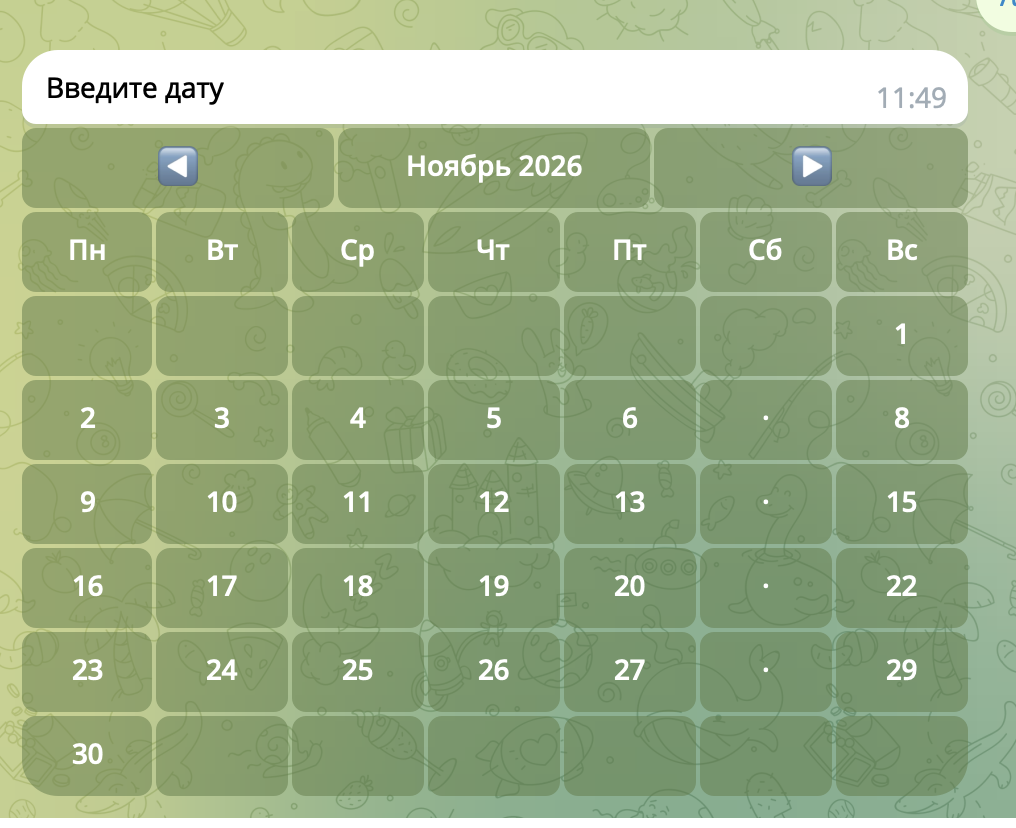
- The question text with a month calendar under it: the month name between ◀ and ▶ arrows, a row of weekday names, then the days.
- Past days, closed days and days outside your range show as a dot (·).
- The arrows switch the month inside the same message. The chat does not fill up with new calendars.
- For Date & time, tapping a day replaces the calendar with that day's time buttons. If the day is today, times that have already passed are hidden.
- After the pick, the calendar folds into one line with the answer, such as "📅 Wed, Sep 30, 2026 · 15:00". Then the flow goes on.
Month and weekday names follow the person's language.
People can type an answer instead of tapping at any moment.
If someone taps an old calendar after the question was already answered, the bot replies "This calendar has expired. Please use the latest message." Nothing else happens.
08Limits
Plain text messages only. The calendar appears only when the question has no buttons and no media. If it has either, the editor warns: "This message has buttons or media, so the calendar won't appear. People will type the date instead." Need a picture or buttons? Put them in a separate message before the question.
Telegram and Web chat. On other channels, such as Instagram and email, people type the date as before.
Typed answers are not limited. The date range and closed days only control what can be tapped. If someone types a Sunday while Sunday is closed, the answer is still accepted. Keep this in mind if a closed day must never be booked.
It does not know your schedule. Everyone sees the same open days and times. The calendar does not check whether a slot is already taken. It is a date picker, not a booking system.
No past dates. Past days cannot be tapped, so do not use it for birthdays or other past dates. Let people type those.
09Next up
Send people down different paths based on the date they picked: Condition Node Basics