
01Get a token from BotFather (2 minutes)
Every Telegram bot belongs to a Telegram account, and Telegram itself hands out the bot's key — not us. You get it from an official Telegram bot called BotFather. You can do this step on your phone.
- Open Telegram and search for @BotFather. Pick the one with the blue verified check.
- Tap Start, then send
/newbot. - BotFather asks for a name. This is what people see at the top of the chat — for example
Acme Support. Send it. - BotFather asks for a username. It must be unique across all of Telegram and must end in
bot— for exampleacme_support_bot. If it is taken, BotFather says so; try another one. - BotFather replies with a message like this:
Done! Congratulations on your new bot. You will find it at t.me/acme_support_bot.
...
Use this token to access the HTTP API:
7212345678:AAHfK3x9Qm2LpZr8TnVw4yBc6DeFgHiJkLo
Keep your token secure and store it safely, it can be used by anyone to control your bot.
The token is the long line with a colon in the middle: numbers, a colon, then letters and numbers. Copy only that line — not the whole message. In most Telegram apps, tapping the token copies it.
The token works like a password for your bot: anyone who has it can control the bot. Do not post it in a public chat or show it in a screenshot.
You can also skip this step for now. The window where you paste the token (Step 5) repeats these instructions.
02Sign up and choose Start blank (1 minute)
Sign up for FlowCastle. The first screen is Create your first automation, with three options. Click Start blank.
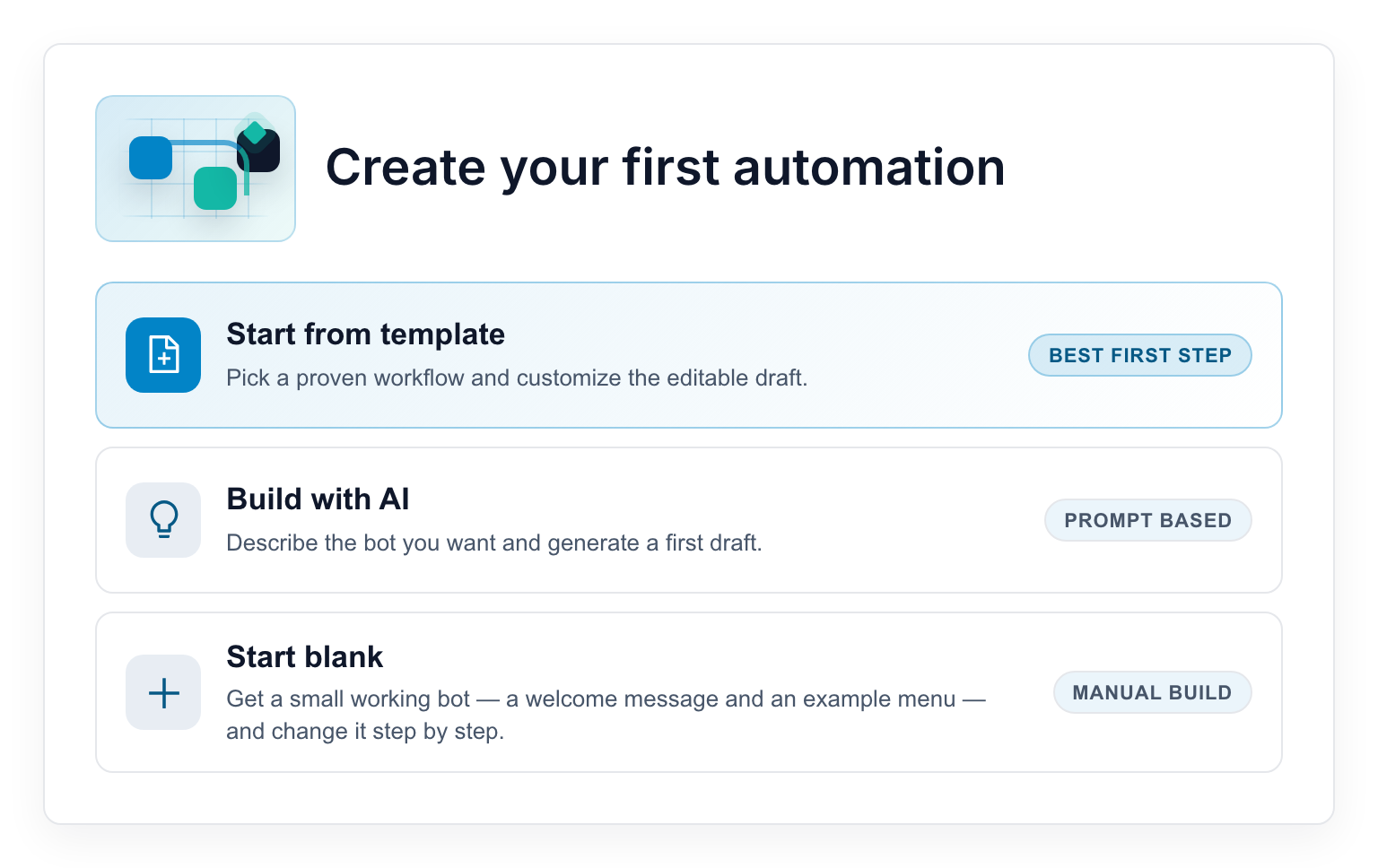
All three options work, but Start blank is the clearest way to learn how a bot is built:
- Start from template gives you a finished bot to adapt.
- Build with AI writes a first draft from a sentence you type.
- Start blank gives you a small working bot you can read end to end.
"Start blank" is not actually empty. It creates two flows for you, so your bot answers from the very first minute. A flow is one conversation path — the steps your bot goes through, in order.
- Welcome flow — what people see when they message your bot
- Main menu — an example menu with three buttons
03Change the welcome message (3 minutes)
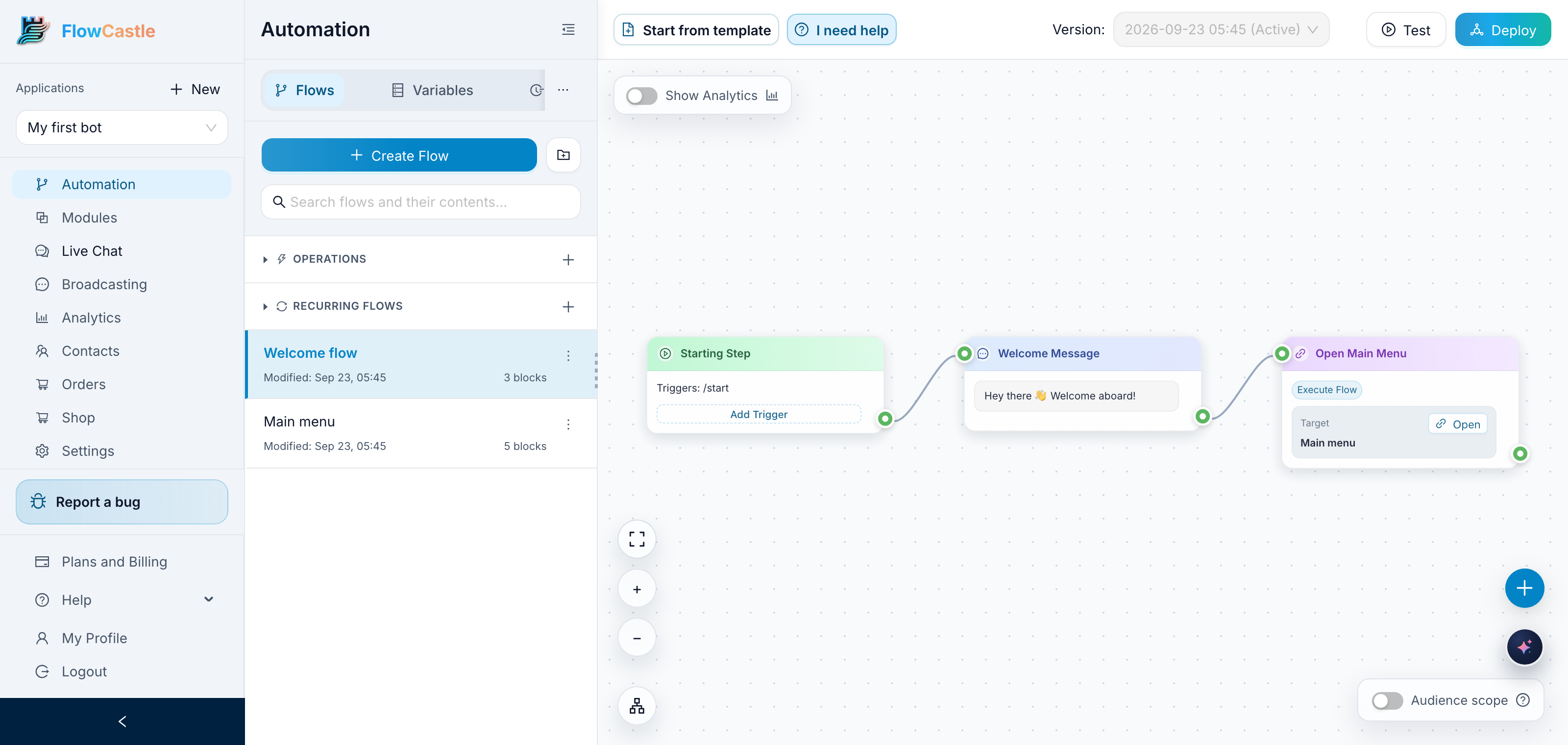
You land on the Automation page. The big dotted area on the right is the canvas — your bot's logic. The Flows list is to the left of it.
Open Welcome flow in the list. On the canvas you see three blocks joined by lines. A block is one step of the conversation (in the editor it is also called a node):
- Starting Step — where the conversation begins, when someone sends
/start - Welcome Message — the text your bot sends
- Open Main Menu — the jump to the Main menu flow
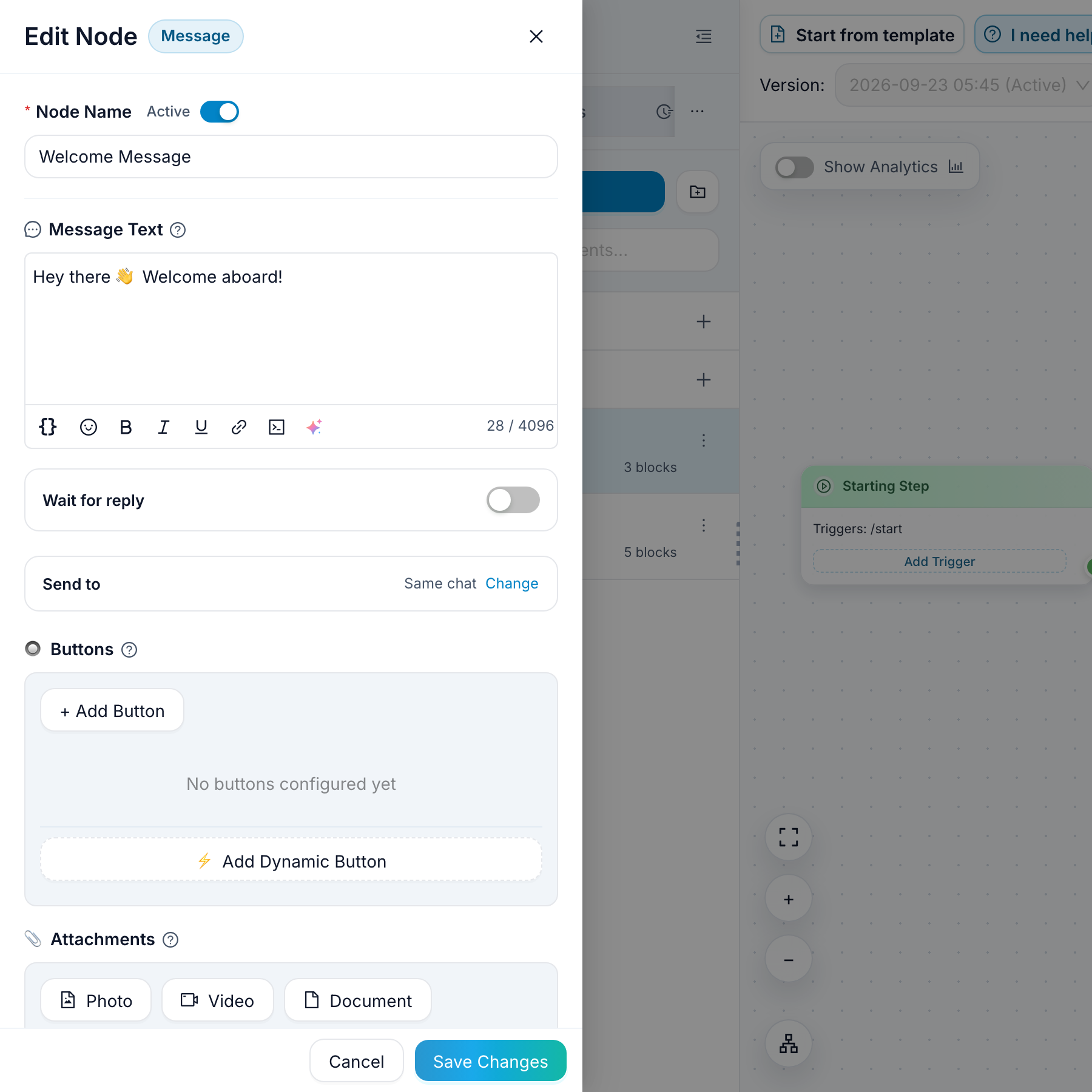
- Click the Welcome Message block. The editor opens on the left side of the screen.
- In the Message Text field, replace the text with your own. Say what your bot does and what the person should do next.
- Click Save Changes at the bottom of the editor.
Now open the Main menu flow and do the same. Click the Main Menu block to rename its three buttons — for example, change 💬 Get help to whatever your bot actually helps with. Then click each reply block (Help Response, About Response, Contacts Response) and write the real answer. Click Save Changes each time.
That is the whole skill. A flow is blocks that send things and blocks that decide things, joined in the order they should happen.
04Test before anyone sees it (1 minute)
Click Test in the top-right toolbar.
The Test your bot panel opens on the right. You talk to your bot there exactly as a user would — before it is live, and without opening Telegram. The bot sends its first message on its own; after that, press buttons or type as a user would.
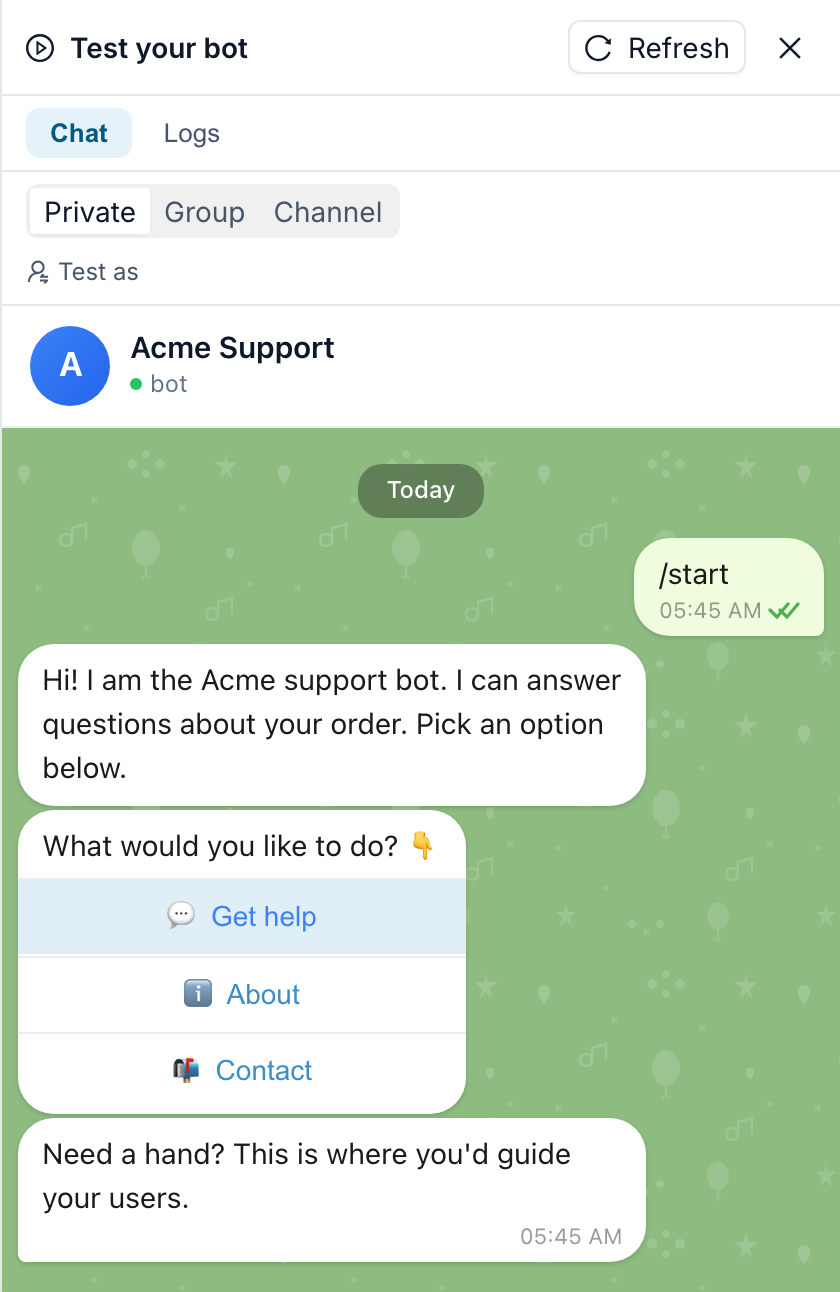
Press every button in your menu. If something reads badly, fix it on the canvas, click Save Changes, and test again.
The Logs tab next to Chat shows what the bot did at each step. Look there when something does not behave the way you expected.
05Go live (2 minutes)
Click Deploy in the top-right toolbar. "Deploy" means publish: copy your current flows to the real bot. Because no channel is connected yet, the Go live window opens first.
- Choose Telegram.
- Paste the token from Step 1 into the Bot token field.
- Click Connect & publish.
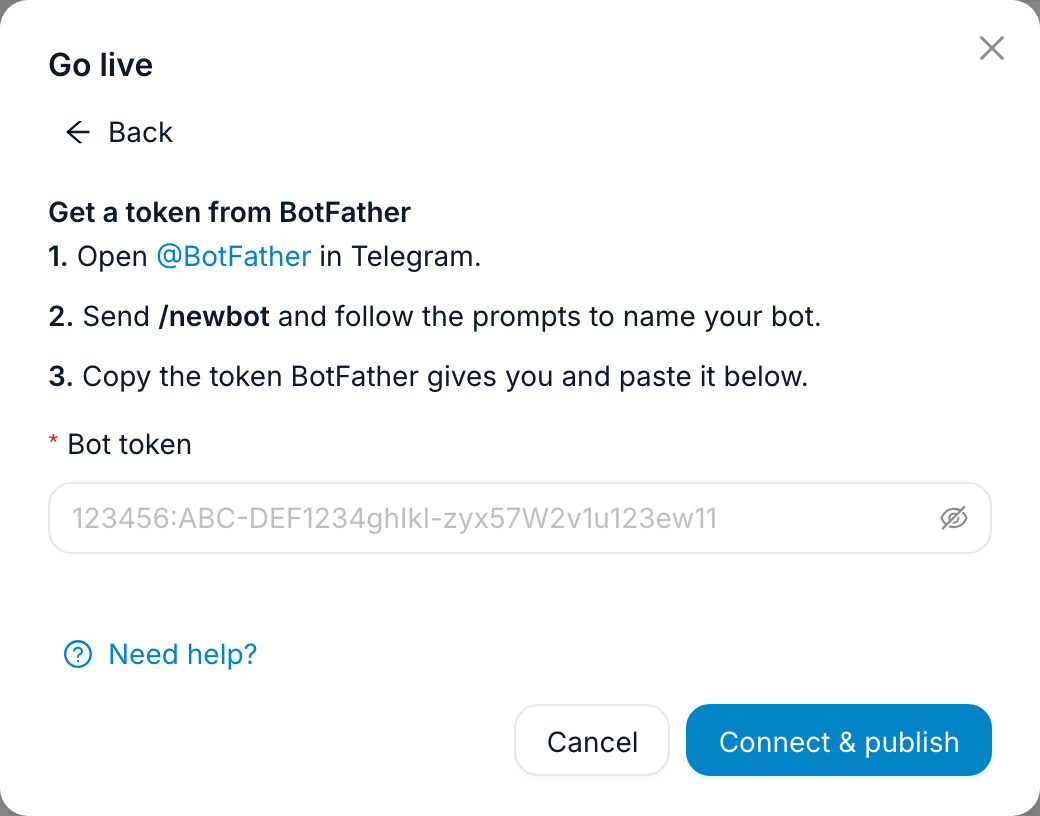
That one click connects your bot and publishes your flows. It can take up to a minute — keep the window open until it finishes.
Then open Telegram, find your bot by the username you chose, and send /start. It answers.
06Change something and publish again (1 minute)
Go back to the canvas, edit any message, and click Save Changes.
Check Telegram: the old text is still there. Saved edits stay on the canvas until you publish them.
Now click Deploy. This time there is no window — it publishes straight away. Message the bot again and the new text appears.
This is the loop you will use from now on: edit → Save Changes → Test → Deploy. Remembering it is the biggest difference between a bot that improves every week and one that quietly falls out of date.
Where to go next
- Add branching so the bot reacts differently to different answers: Condition Node Basics
- Write better messages with buttons and variables: Message Node Basics
- Put the same bot on your website, without building it twice: Embed Web Chat on Your Site
If something did not work
BotFather says the username is taken. Every Telegram username is global. Add your company name or a word that narrows it.
Connect & publish shows an error about the token. You probably copied extra text. Paste only the token line from BotFather — numbers, a colon, then letters and numbers — with no spaces.
The bot does not answer /start. Check that publishing finished, and that you are writing to the bot with your username — Telegram search often shows a different bot with a similar name first.
Your changes are not showing up. Saving is not publishing. Click Deploy.
Next up
Your bot is live — now learn how to add your own steps to the canvas: How To Add Your First Node