
"Where is my order?" is the most common question a shop's chat gets, and the one almost no chat widget can answer. It collects an email address and promises that someone will get back to you. The customer waits. Often they open a support ticket about the support chat.
The reason is not AI quality. No amount of training on your website content will produce that answer, because the answer is not on your website — it is in your order system. Answering it needs a chat that can make a request, read the response, and decide what to say next.
This walkthrough builds exactly that: a widget on your site that asks for an order number, calls your own API, and replies with the real status and a tracking link. It takes about twenty minutes and no code. A ready-made template is linked at the end, and step 2 starts from it.
What you'll build
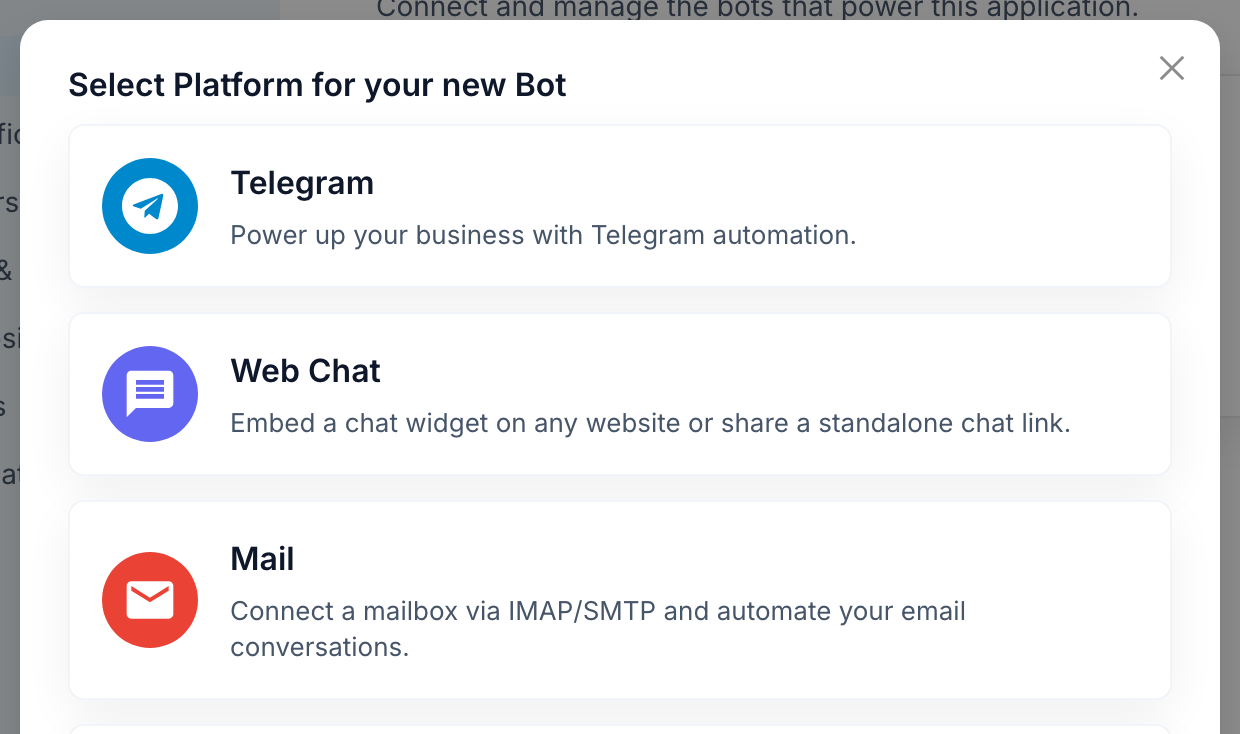
A visitor opens the chat and taps Track my order. The bot asks for the order number. It sends that number to your store's API, reads the status out of the response, and answers one of three ways: shipped, with the tracking link; still being processed, with the expected date; or not found, in which case it asks the visitor to check the number rather than dead-ending. At any point the visitor can ask for a human and land in your team's inbox.
You'll need a URL that returns an order when you give it an order number. If your store platform has an orders API, you already have one.
Step 1: Add a web chat bot
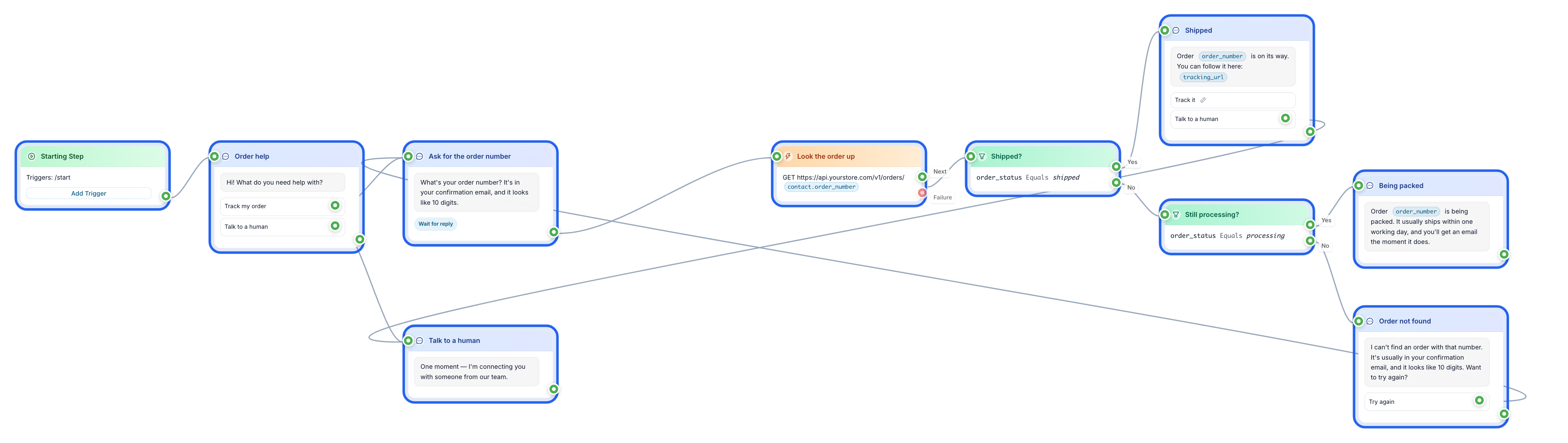
In your application, add a bot and choose Web Chat. There is no token to fetch and no approval to wait for — unlike a Telegram bot, it exists as soon as you create it. You can leave it unnamed for now.
Step 2: Install the E-commerce Order Help template
Open E-commerce Order Help and install it into your application. It gives you the parts that are the same for every shop: the order-help menu, the question that captures the order number, the change/return routing, and the handoff to a person.
What it deliberately does not include is the lookup itself — it captures the request and notifies your team instead, because it cannot know what your order API looks like. That is the step you're about to add, and it is the only custom part.
After installing, open the flow named for order tracking. You'll see the question block that stores the visitor's answer in a variable — by default {{order_number}}.
Step 3: Add the External Request
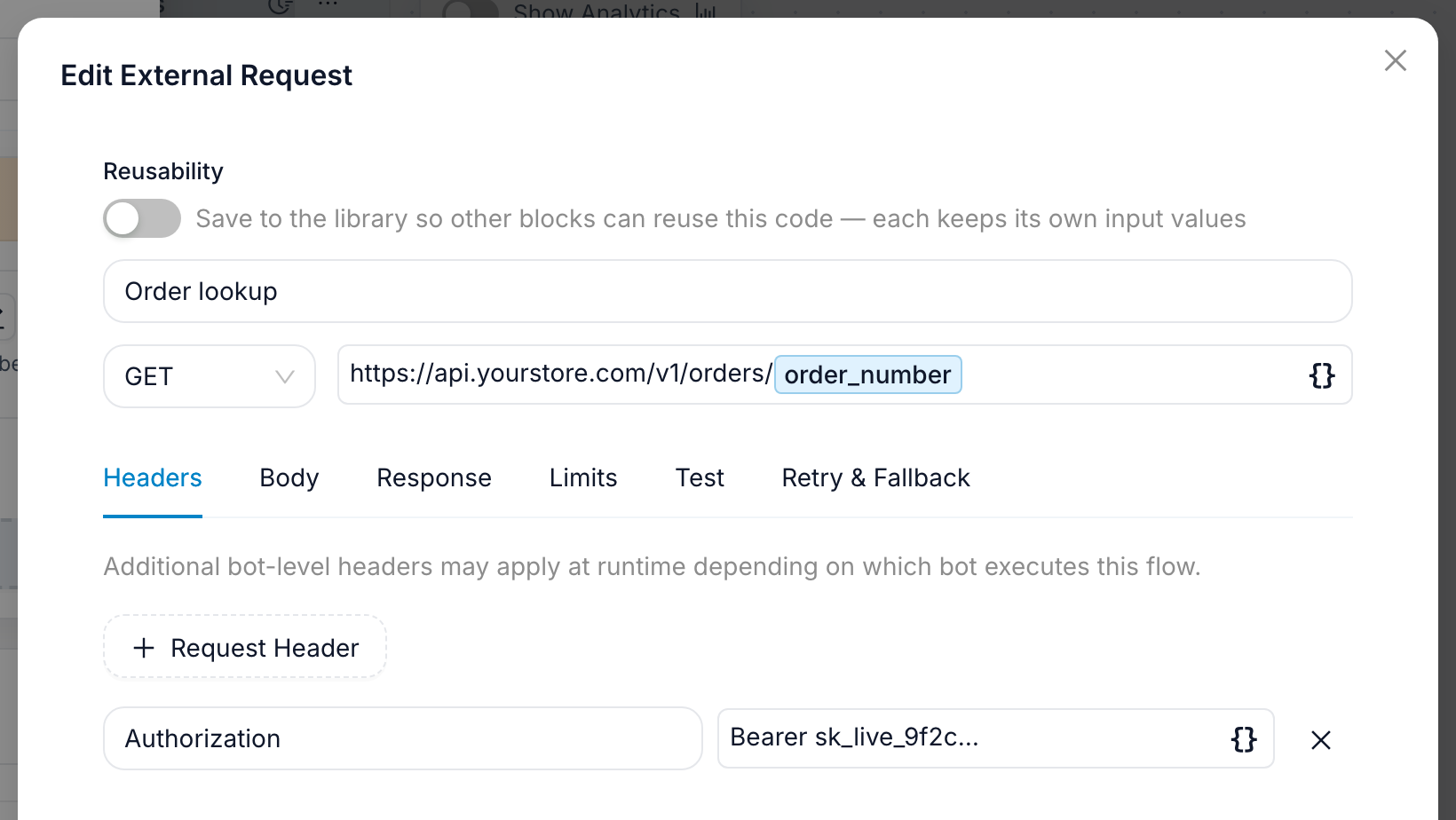
On the block that runs after the order number is captured, add an action and choose External Request ("Send an HTTP request to an external API").
Set the method to GET and the URL to your orders endpoint, with the variable inserted where the order number goes:
https://api.yourstore.com/v1/orders/{{order_number}}
Insert {{order_number}} from the variable picker rather than typing it — picked variables become chips the flow can resolve, typed text stays text.
If your API needs a key, open the Headers tab and add one — for example a header named Authorization with your token as the value.
Step 4: Read the answer out of the response
This is the step that turns a request into a conversation.
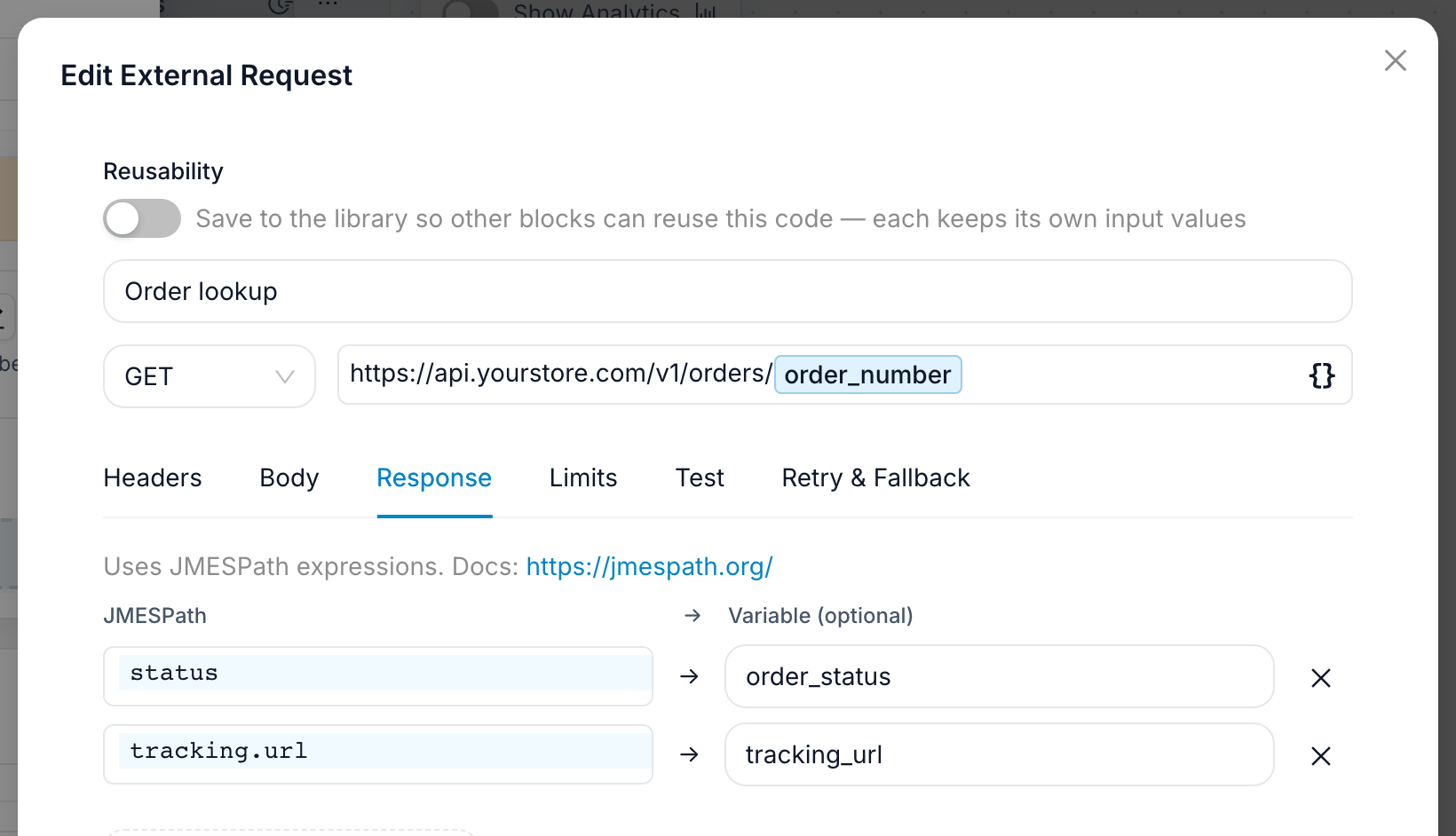
Open the Test tab and run the request once against a real order number. You'll get your API's actual response back. Then open the Response tab — the panel offers Fields From Last Test Response, so you can pick fields out of the real payload instead of guessing at its shape.
Response mapping uses JMESPath, which for most APIs is just the field's path. Add two mappings with Add Response Mapping:
| JMESPath | Variable |
|---|---|
status | order_status |
tracking.url | tracking_url |
Adjust the left column to match your own payload — if your API returns {"order": {"state": "shipped"}}, the path is order.state. From here on, {{order_status}} and {{tracking_url}} hold real values from your store.
Step 5: Branch on what came back
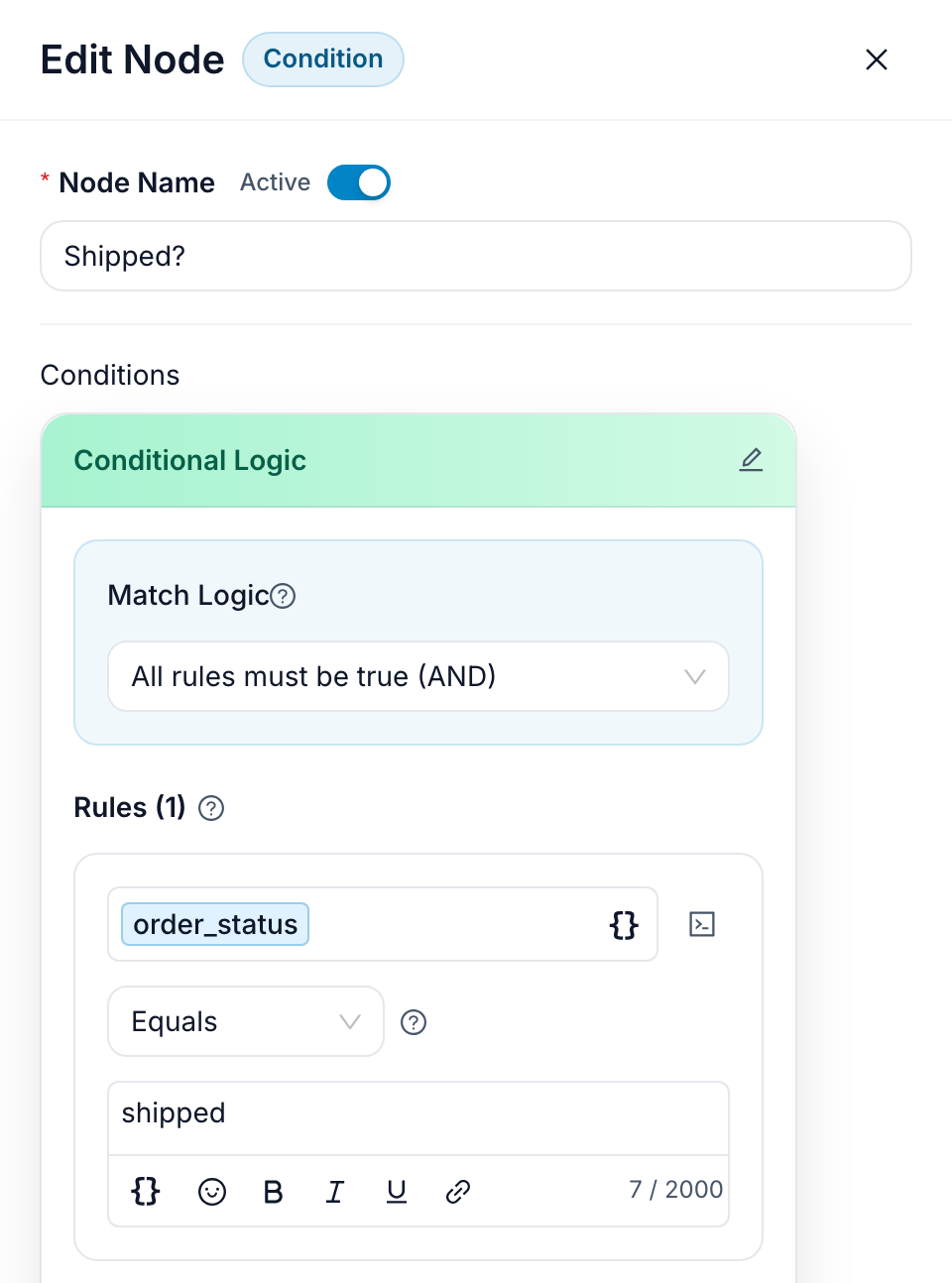
Add a condition after the request. A condition asks one yes-or-no question and has two exits, so you chain one condition per status. A shop usually needs two conditions and three replies:
- Shipped? —
{{order_status}}equalsshipped. Yes goes to the tracking message, No goes to the second condition. - Still processing? —
{{order_status}}equalsprocessing. Yes goes to the "still being packed" message, No goes to the not-found path.
For the shipped branch, write the message with the variables inserted as chips:
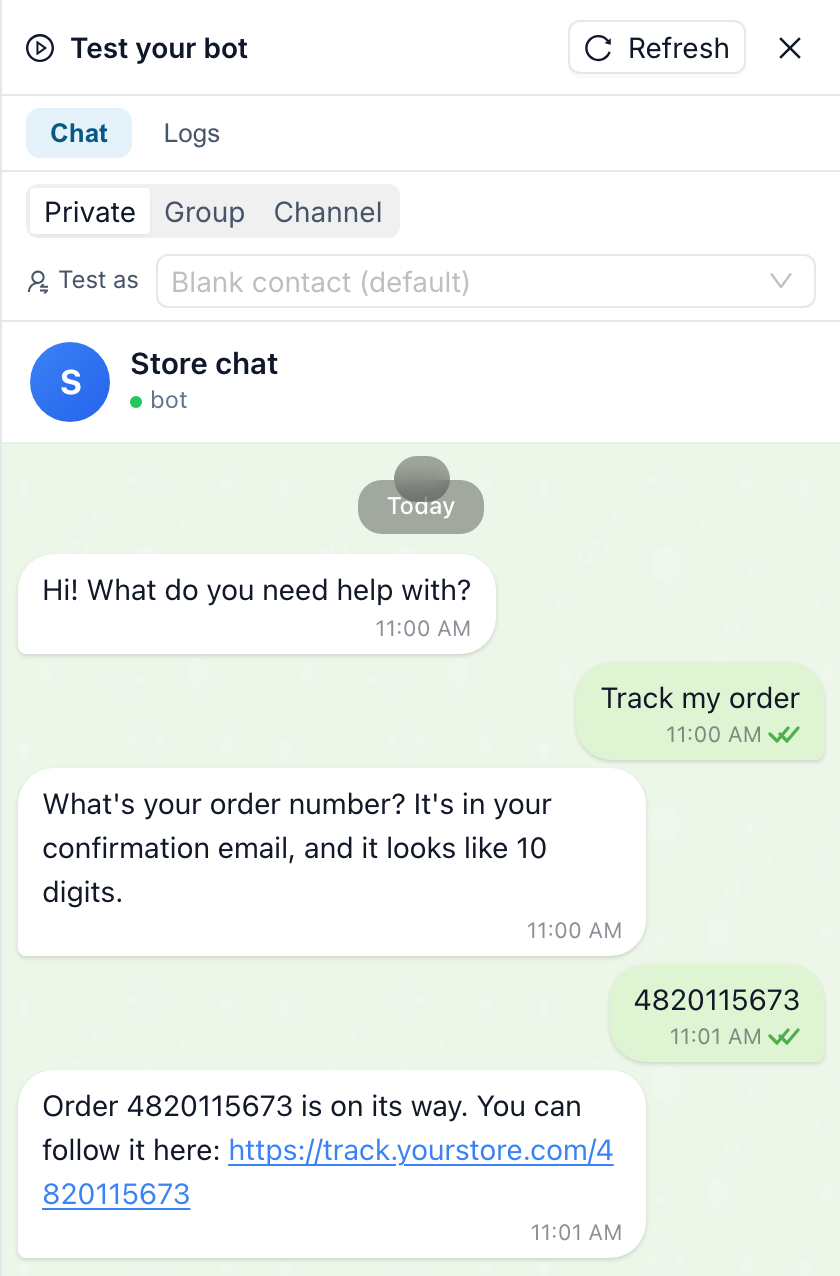
Order {{order_number}} is on its way. You can follow it here: {{tracking_url}}
Give it two buttons: Track it (a link button pointing at {{tracking_url}}) and Talk to a human.
For processing, say what is true and give the same escape hatch:
Order {{order_number}} is being packed. It usually ships within one working day, and you'll get an email the moment it does.
The not-found branch matters more than it looks. Do not end the conversation there:
I can't find an order with that number. It's usually in your confirmation email, and it looks like 10 digits. Want to try again?
Point its "Try again" button back at the question block from step 2. That single loop is the difference between a chat that helps and a chat that gives up.
Step 6: Test it the way a stranger will
Open the test panel and run the flow as a visitor would: tap the menu button, type a real order number, and check the reply carries the real status. Then type a number that does not exist and confirm you land in the retry loop rather than a dead end.
Then put it on your site. One script tag before the closing </body> tag gives you the floating bubble on every page; the embed guide also covers the inline frame and the standalone page if you want the chat somewhere specific.
What this costs to run
Worth knowing before you scale it. FlowCastle bills per interaction — one automation event each time a visitor writes or taps a button — and nothing the bot does in response is counted, so the API call, the condition and all three replies are free. Each person's first message is free too, and contacts are unlimited. The free plan includes 2,000 events a month, which is roughly 250 conversations.
This particular flow uses no AI at all, so it draws nothing from the separate AI credit allowance. That is the point of building the predictable path deterministically: an order lookup should not cost model tokens, and it cannot invent a status.
Where to take it next
The same three blocks — ask, request, branch — cover most of what a website chat is asked to do that it currently cannot. Swap the endpoint and you have a subscription checker, an appointment lookup, a delivery-slot picker, or a licence-key reissue. If the response needs real work before you can use it, there is a custom code step for that, and the AI assistant will write it from a plain description.
One thing this flow does not do: take payment. Payments run in Telegram, not in the website widget, so a refund or a re-order should link out to your normal checkout.
Ready to start? Install E-commerce Order Help, then add the External Request from step 3 — that is the whole build.