
You are already a member of the groups where your buyers talk: professional communities, niche chats, partner groups. Somewhere in the hundreds of messages posted there every day, people ask for recommendations, compare tools, and name budgets — and almost all of it scrolls past unread. This walkthrough turns your own Telegram account into a quiet lead radar: connect it to FlowCastle, describe in plain language what a hot lead looks like for your business, and the official FlowCastle bot will send you a short alert with a direct link to the person the moment a matching message appears.
One thing to be clear about up front, because this is where most "lead scanner" tools go wrong: there is no scraping here. The account only reads messages it already receives as a member — no member lists are harvested, no groups are auto-joined, and the flow never replies in a group or messages anyone. Alerts come to you; answering stays your job. If you want automated conversations, run them where people opted in — on a regular bot in your community or on your website (lead bot tutorial).
The setup below goes click by click. It is built on a ready-made template — the Userbot Chat Monitoring template is linked again at the end, so you can start from a working flow instead of a blank canvas.
What you will build
- your personal Telegram account connected to FlowCastle by scanning a QR code — no bot is added to any group, and no group admin needs to approve anything
- a short list of watched groups, all of them groups your account is already a member of
- an AI step that screens every new group message against your watch scope — a plain-language description of what matters to you, in any language
- an alert delivered by the official FlowCastle bot: the group, the sender with a direct t.me link, a one-line reason, and the original message
Step 1: Connect your Telegram account
FlowCastle treats a connected personal account like any other bot in your workspace.
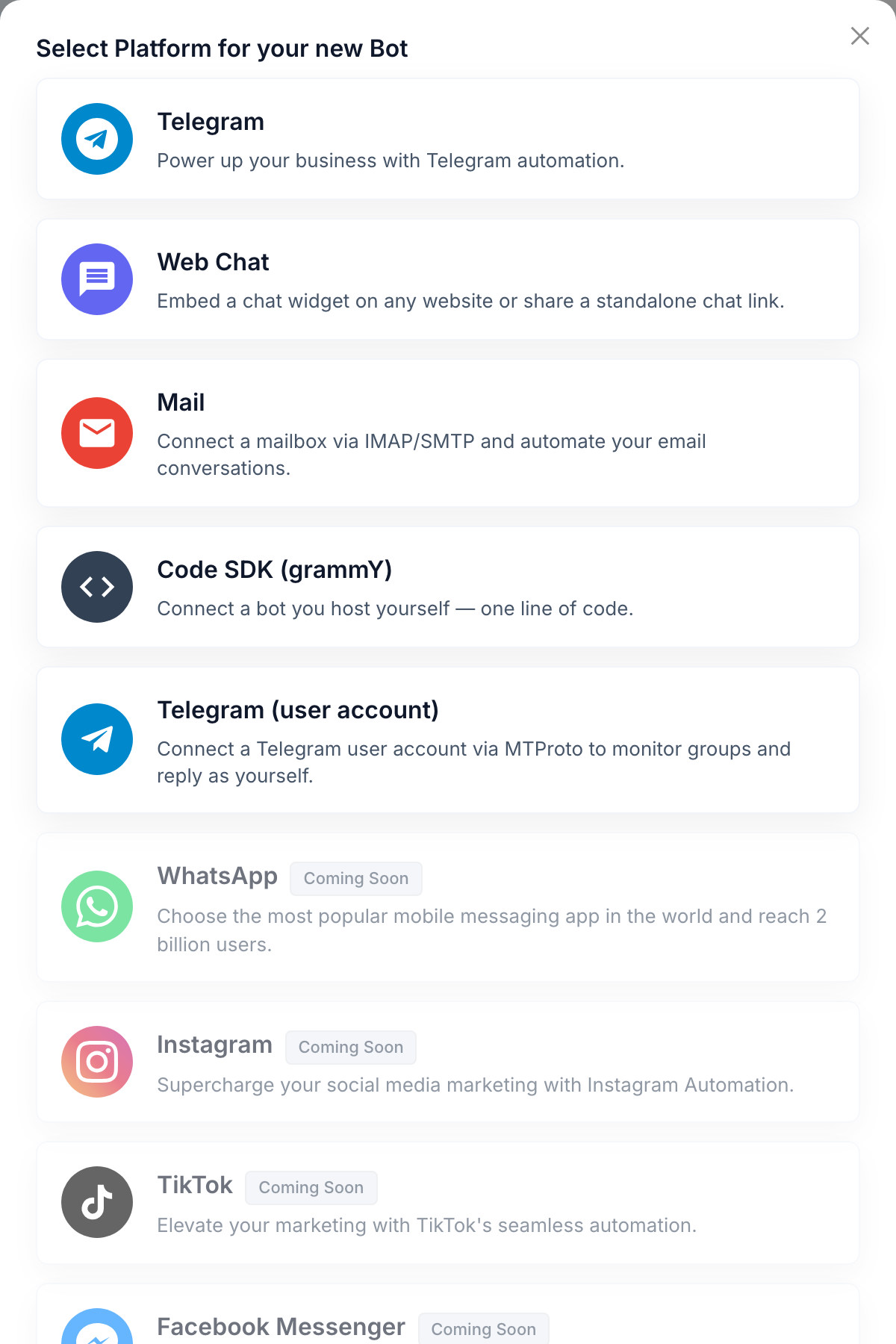
- Open Bots and click Add Bot.
- In the platform picker, choose Telegram (user account) — the card described as "Connect a Telegram user account via MTProto to monitor groups and reply as yourself."
- Name the connection (something like "My Telegram account") and click Create.
Now open the new bot''s Account tab and press Connect account. A QR code appears. On your phone, open Telegram and go to Settings → Devices → Link Desktop Device, then scan the code. If your account has two-step verification, FlowCastle asks for your cloud password to finish. When the tag switches to Connected next to your @username, you are done.
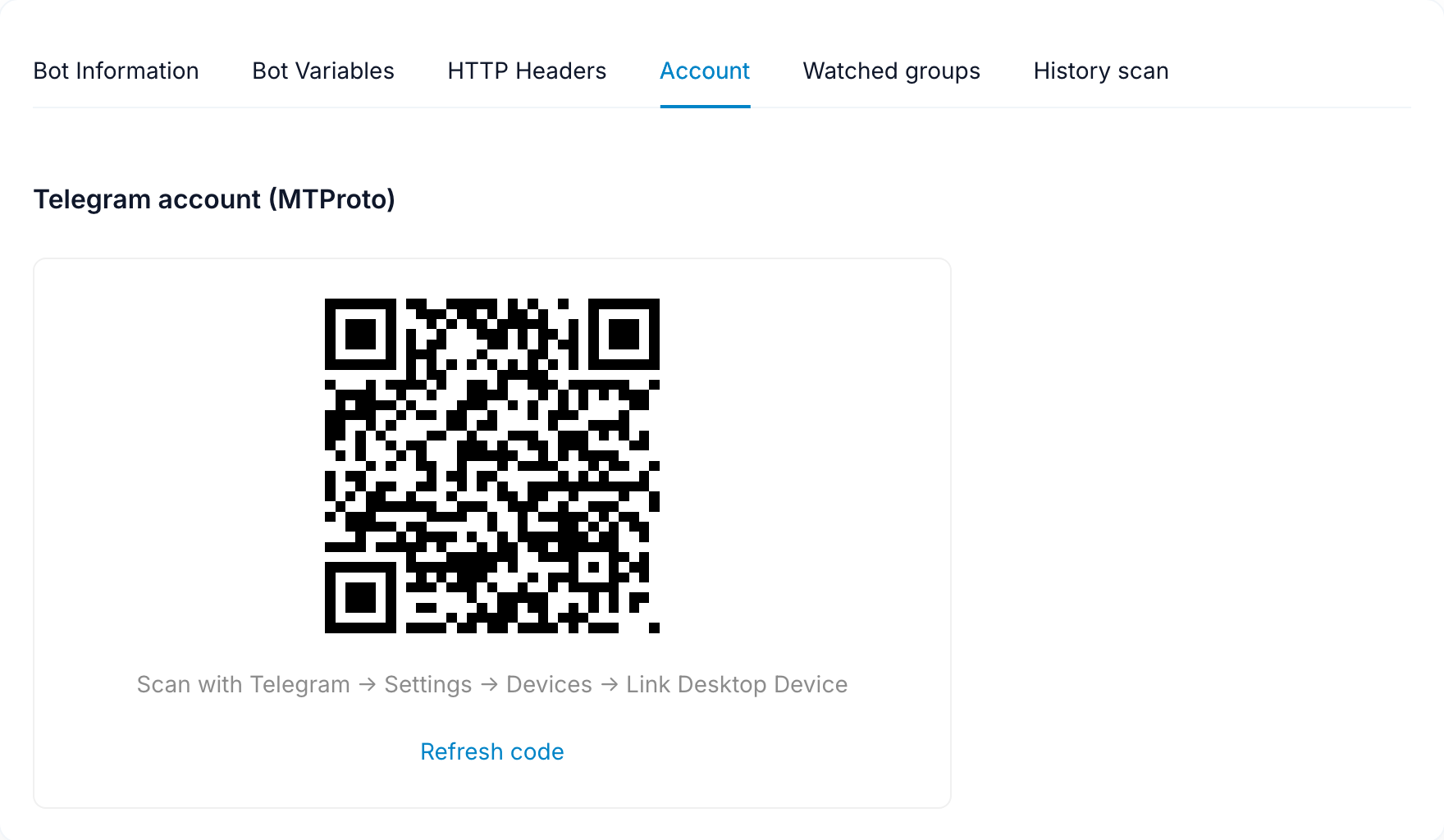
From Telegram''s point of view FlowCastle is now a linked device, like Telegram Desktop. You can disconnect it at any moment — from the same tab, or from your phone''s device list.
Step 2: Pick the groups to watch
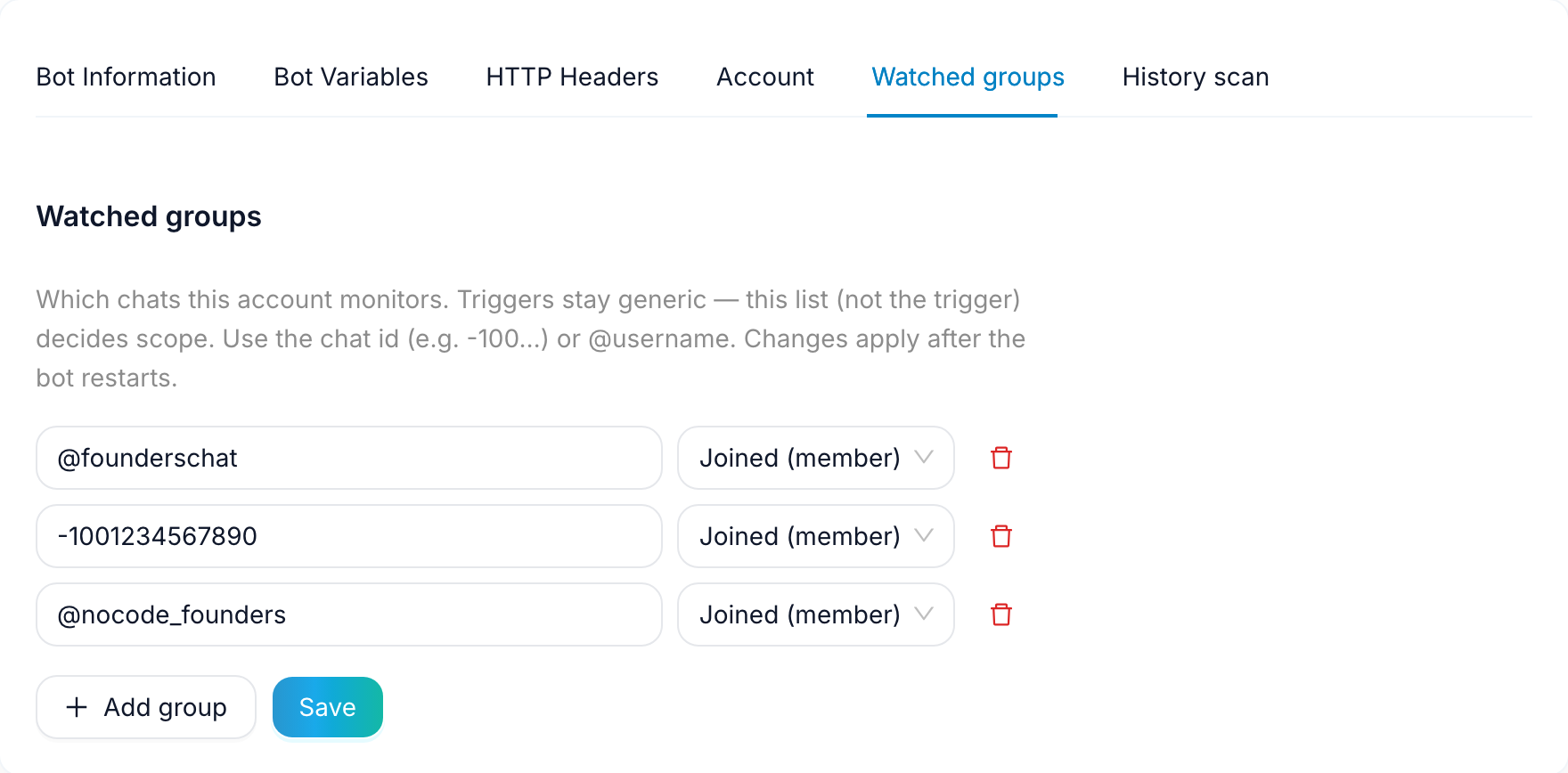
Switch to the Watched groups tab. Add one row per group: use the @username for public groups, or the chat ID (it starts with -100) for private ones, and keep the mode set to Joined (member). Then save — FlowCastle will remind you to restart the bot so the new list takes effect.
Two practical tips. List your groups explicitly instead of leaving the list empty: an explicit list is monitored more reliably and keeps noise down. And start with the three to five groups where your customers actually talk — you can always add more once you trust the alerts.
Step 3: Start from the template
Open the Userbot Chat Monitoring template and press Start from this template. It clones the whole flow into your workspace, ready to edit.
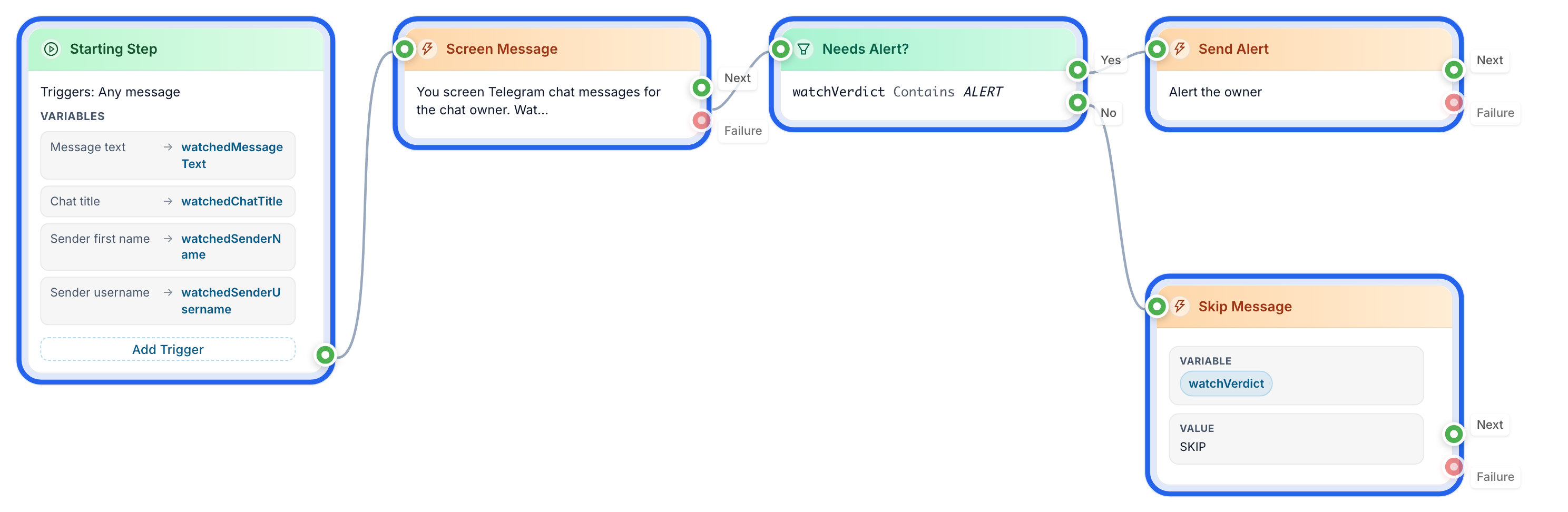
The flow has four working parts:
- a trigger of type "Message" with Telegram source set to "Group" and group scope set to "All group messages" — the message filter stays empty, because filtering is the AI''s job
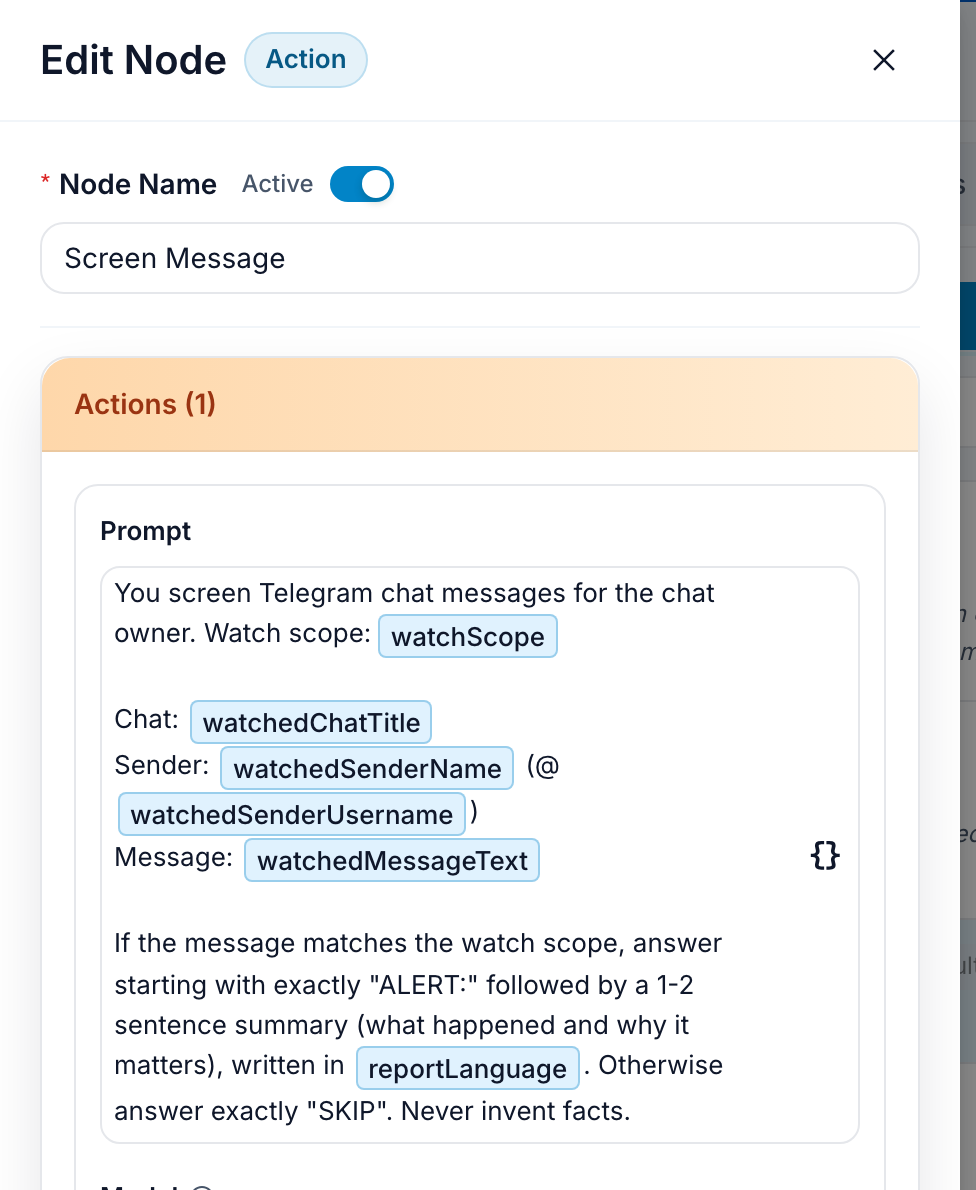
- an AI Action that screens each message against your watch scope and answers either
ALERT:with a short summary, orSKIP - a Condition that lets only
ALERTverdicts through - a Service Notification step that sends the alert to you through the official FlowCastle bot
The screening prompt already ships in the template. It receives the message through variables — {{watchScope}}, {{watchedMessageText}}, {{watchedSenderName}} — inserted as chips from the variable picker, and instructs the model to answer SKIP unless the message genuinely matches your scope, and never to invent facts.
Step 4: Describe your hot lead
The whole system is steered by one variable: {{watchScope}}. It is plain language, not a keyword list. The template''s lead-oriented value is a good starting point:
Potential customers: people asking for recommendations, budgets, or offers related to my business.
Make it yours by adding one line about what you sell and what buying intent sounds like in your niche — the phrases people use when they are choosing, the competitor names they compare, the "can anyone recommend" questions. Because the screening is semantic, you describe meaning once instead of maintaining keyword lists that miss every paraphrase.
The template is not tied to any business or language. Write the watch scope in whatever language you think in — the AI reads all of them. A second variable, {{reportLanguage}}, sets the language alerts are written in; by default each alert simply matches the language of the message it describes.
Step 5: Test it, then trust it
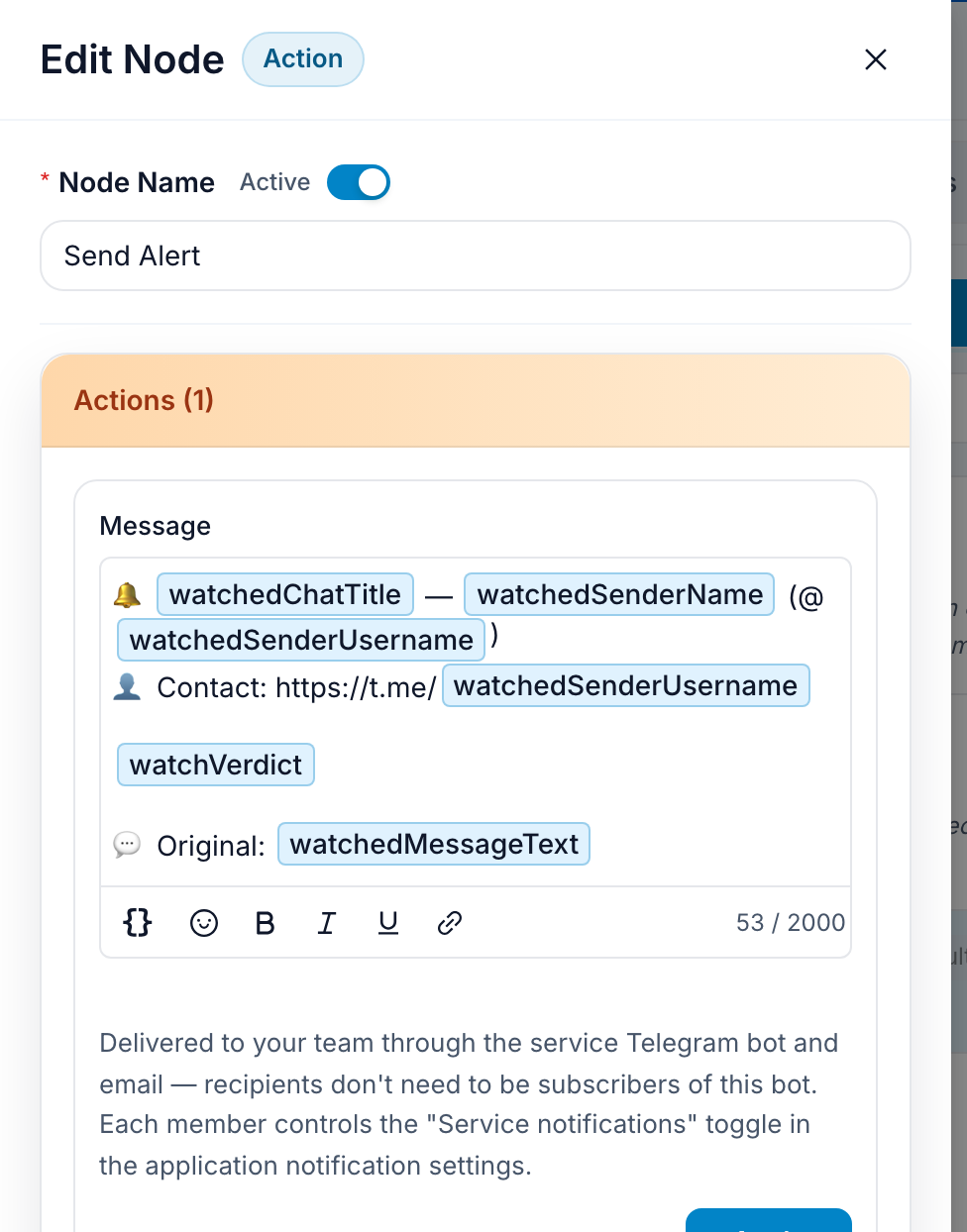
The alert message ships in this shape — the chips are variables, filled per message:
🔔 {{watchedChatTitle}} — {{watchedSenderName}} (@{{watchedSenderUsername}})
👤 Contact: https://t.me/{{watchedSenderUsername}}

ALERT: Asking for a tool recommendation with a budget — matches your lead scope.

💬 Original: {{watchedMessageText}}
It is sent by a Service Notification action: the official FlowCastle bot delivers it to you in Telegram, with email as a fallback. Link your Telegram to your FlowCastle account once — Settings → Notifications — and every alert finds you there, with a tappable link straight to the lead (the link works whenever the sender has a public @username).
To test, use a small group of your own (or ask a friend) and post something that should match, like: "Can anyone recommend a tool for automating Telegram support? Budget is about $200/mo." Moments later the FlowCastle bot pings you with the alert. Then do the important part manually — reply in the group as yourself.
What screening costs
Every screened message is one small AI request — about 1 AI credit with the default model. The free plan includes 100 credits a month: enough to connect a quiet group or two and see real alerts arrive. For always-on monitoring of busy chats, contact us in the support chat — we will set you up with a bigger allowance or run the screening on your own AI provider key.
After the alert
Treat the alert as a doorbell, not a mail merge. Answer in the thread where the question was asked, or tap the contact link in the alert and write one personal message that references it. In production you might also route matched leads onward — into a CRM or spreadsheet via an HTTP request, or with the Telegram Group Insight Log template, which logs and classifies every group message for weekly review instead of real-time alerts. Both patterns deserve their own article.
Limits worth knowing
- The radar only covers groups your account is a member of — client groups, communities, industry chats you are already in.
- Screening runs on the message text, so the quality of your watch scope decides everything: the more concretely you describe what matters, the fewer false alarms.
Set it up once, and the groups you are already in start working for you — quietly, in the background. Start from the Userbot Chat Monitoring template and your first alert can arrive today.